To create a new quiz, go to EAS > Quizzes and click Add New Quiz.
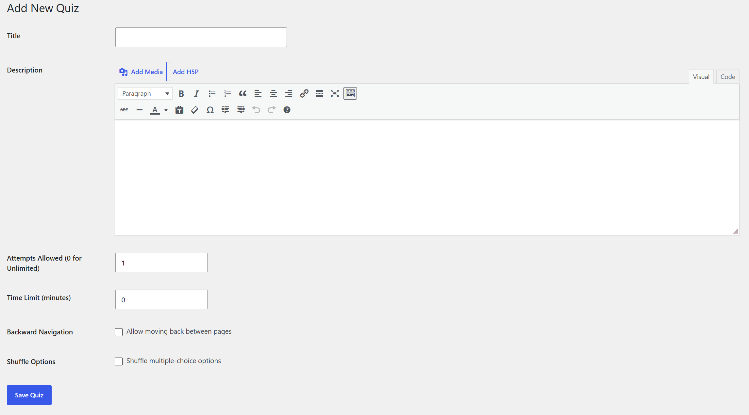
Enter a Title for the quiz. The title identifies the quiz throughout EAS and is also displayed to students.
Enter a Description if required. The Description field uses the WordPress editor, so text formatting and other WordPress editor features can be used.
The quiz settings include:
Attempts Allowed
Specify how many times a student may attempt the quiz.
Enter 0 to allow unlimited attempts.
Time Limit
Specify the maximum time allowed for the complete quiz in minutes.
Enter 0 if the quiz has no overall time limit.
Backward Navigation
Enable Allow moving back between pages if students should be able to return to earlier pages.
If backward navigation is disabled, students cannot return to a previous page after moving forward.
Shuffle Options
Enable Shuffle multiple-choice options if the answer options of Multiple Choice questions should be displayed in a different order for each attempt.
After entering the quiz information, click Save Quiz.
The new quiz is then displayed in EAS > Quizzes. The next step is normally to create its pages and add questions.