e-Assessment Suite (EAS)
Create and manage online assessments for standardized language tests covering reading, listening, speaking, and writing skills.
e-Assessment Suite (EAS) is a WordPress plugin for creating and managing online assessments.
It is designed for standardized language tests and other educational assessments in which reading, listening, speaking, and writing skills are assessed.
EAS provides a structured assessment system in which teachers can create quizzes, organize them into pages, add questions, and review student results.
Main Features
- Create and manage assessments from the WordPress administration area.
- Organize assessments into multiple pages.
- Add and manage questions within assessments.
- Support multiple-choice questions.
- Support fill-in-the-blank questions.
- Support essay questions.
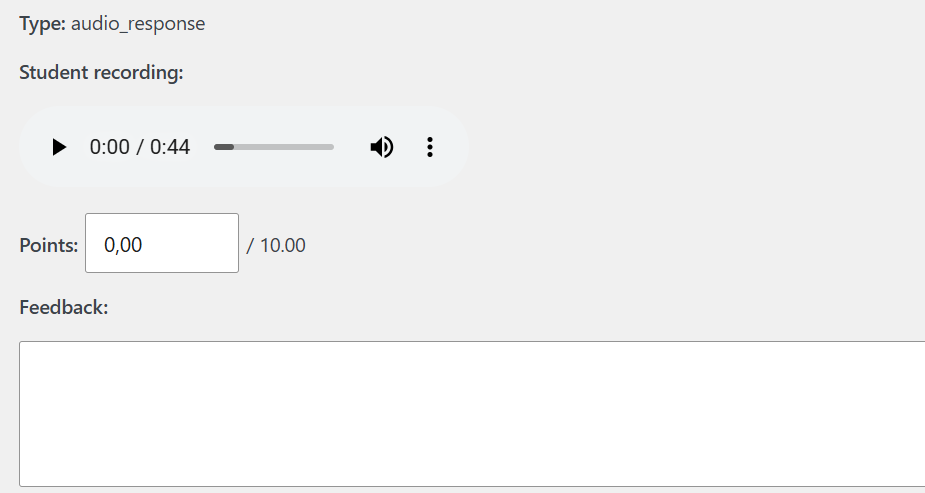
- Support audio-response questions.
- Support drag-and-drop text questions.
- Support description/instruction between questions.
- Assign points to questions.
- Configure the number of attempts allowed for an assessment.
- Configure assessment time limits.
- Enable or disable backward navigation between assessment pages.
- Save student attempts and responses in the WordPress database.
- Display student results through a shortcode.
- Allow registered users to take assessments.
- Restrict assessment administration to authorized users.
- Review completed assessments with correct and incorrect answers clearly indicated.
- Display feedback during assessment review.
- Provide an administration interface for managing assessments, pages, questions, and student attempts.
Designed for Standardized Language Assessment
EAS is intended to support the development of online assessment activities for standardized language tests.
It can be used for assessments that evaluate reading, listening, speaking, and writing skills, including the TOEFL iBT preparation and other language assessment programs.
Teachers can create structured practice assessments and organize questions into pages that reflect the organization of their tests and courses.
The plugin is designed to provide a foundation for online assessment rather than to replace a complete learning management system.
Requirements
- WordPress 6.0 or later.
- PHP 7.4 or later.
- A WordPress website with registered users enabled.
Usage
After installation, administrators and authorized teachers can create assessments from the EAS administration area.
An assessment can contain multiple pages, and each page can contain questions. Teachers can configure the assessment settings and assign points to questions.
Students must be registered users to take assessments. After completing an assessment, their answers and results are saved. Students can then review their completed assessment and view their results through the configured results page.
Shortcodes
EAS provides a shortcode for displaying the results of the currently logged-in user. This page is created during installation.
Privacy
EAS stores assessment attempts, responses, and results in the WordPress database.
Website administrators are responsible for informing users about the collection and storage of assessment data and for configuring their website's privacy practices appropriately.
Development
e-Assessment Suite is developed as an open-source WordPress plugin.
The source code is available on GitHub: https://github.com/hakan-gur/EAS
Frequently Asked Questions
Who can use EAS?
EAS is designed for teachers and educational institutions that provide standardized language tests and other educational assessments.
Can EAS be used for tests other than the TOEFL iBT?
Yes. EAS is designed for a range of standardized language assessments. It can be used for tests that assess reading, listening, speaking, and writing skills.
Do students need to register?
Yes. EAS is designed for registered users. Students must be logged in to take assessments.
Can I create assessments with multiple pages?
Yes. Assessments can be organized into multiple pages, with questions assigned to each page.
Can I assign points to questions?
Yes. Questions can have assigned point values, and student results are calculated from the points available for the questions.
Can students review their completed assessments?
Yes. After completing an assessment, students can review their answers. Correct and incorrect answers are indicated, and feedback can be displayed.
Can I limit the number of attempts?
Yes. An assessment can be configured with a maximum number of attempts.
Can I set a time limit?
Yes. An assessment can be configured with a time limit.
Does EAS provide certificates?
No. EAS is an online assessment system. It does not currently provide certificates.
License
e-Assessment Suite is free software, licensed under the GNU General Public License version 2 or later.
You may redistribute it and/or modify it under the terms of the GNU General Public License as published by the Free Software Foundation. e-Assessment Suite will be distributed through the official WordPress plugin pages (wordpress.org/plugins) starting from 2027.
e-Assessment Suite is distributed in the hope that it will be useful, but WITHOUT ANY WARRANTY; without even the implied warranty of MERCHANTABILITY or FITNESS FOR A PARTICULAR PURPOSE.
 English Assessment Suite (EAS) is a WordPress quiz creation and management plugin, created for this website. It has been designed in such a way that both the TOEFL iBT and the TOEIC practice test can be created and the test interface is as close to the real test interface as possible. It is a translation-ready plugin.